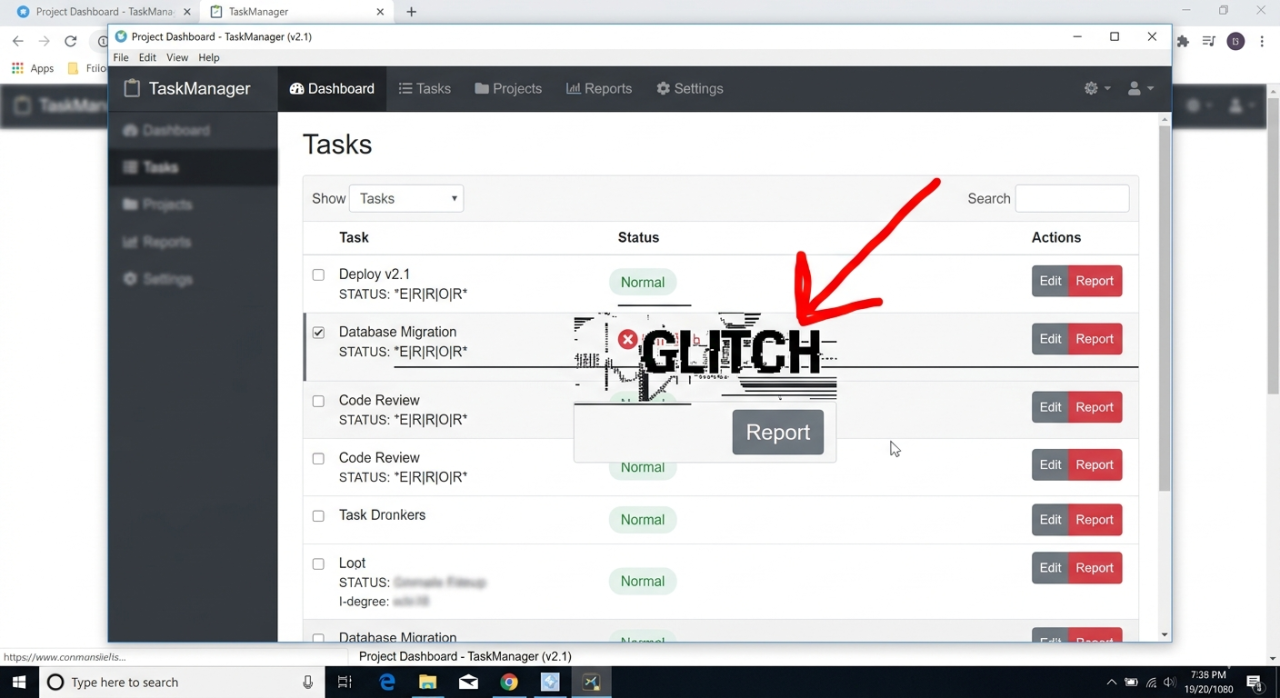
ผู้ใช้คลิกปุ่มถ่ายภาพข้อบกพร่องและส่งให้ฉันโดยไม่ต้องติดตั้งสิ่งใด
There is a moment in the life of every web application where a user encounters something broken. A button that does nothing when clicked. A layout that collapses on a particular screen size. A form that swallows its own error message. The user stares at the screen, confused, and then does one of two things. Most of them simply leave and never come back. A rare few take the time to compose a message along the lines of "something is wrong with your site." That message arrives without context, without a description of what happened, without any indication of what browser or device was involved, and certainly without a screenshot showing the actual problem. The developer reads that message, tries to reproduce the issue, fails, and the bug goes unfixed until it bites the next user. This cycle repeats endlessly across the internet, and the root cause is not user laziness. The root cause is friction.
Taking a screenshot on a computer requires knowing the right keyboard shortcut, which varies by operating system. On Windows it might be Print Screen, or Alt plus Print Screen for the active window, or Windows key plus Shift plus S for the snipping tool. On a Mac it is Command plus Shift plus 3, or 4, or 5, each producing slightly different results. On a phone the gesture involves pressing two physical buttons simultaneously, which half the time accidentally locks the screen instead. After the screenshot is taken, it needs to be located in the file system, attached to an email or pasted into a support form, and sent. Each of those steps is another point where the user gives up and decides the bug is not worth reporting. The result is that developers receive roughly one report for every hundred bugs that users actually encounter.
The solution that emerged from this frustration is embarrassingly simple. A small button appears on the page. When the user clicks it, the server captures a screenshot of the exact page the user is viewing and attaches it to a report. No browser extension required. No keyboard shortcut to remember. No file to locate and upload. One click, one screenshot, one report. The user adds a sentence or two describing what went wrong, and the developer receives a perfectly clear image of the broken page alongside the description. That is the entire workflow, and it has changed the way bug reports arrive.
เหตุใดส่วนขยายเบราว์เซอร์จึงไม่เคยแก้ปัญหานี้
The obvious first reaction is that browser extensions already exist for this purpose. There are dozens of screenshot tools available as Chrome extensions, Firefox add-ons, and Safari plugins. Some of them are quite good, with annotation features, automatic uploads, and integration with project management platforms. But they all share the same fundamental flaw. They require the user to install something before the bug happens. Nobody installs a bug reporting extension preemptively on the off chance that some website they visit tomorrow will have a broken layout. Extensions solve the problem for QA teams and internal testers who can be told to install specific tools. They do absolutely nothing for the general public encountering a bug for the first time on a site they may never visit again.
There is also the matter of trust. Asking a user to install a browser extension in order to report a bug introduces a jarring shift in the interaction. The user came to the site to accomplish something, discovered it was broken, and is now being asked to install third party software. That request will rightfully raise suspicion for many users, and even those willing to comply face the overhead of navigating extension stores, granting permissions, and figuring out how the tool works. By the time the extension is installed, the original bug might no longer be reproducible, or the user has simply moved on to a competitor. The window for capturing a bug report is narrow, and anything that widens the gap between "something is wrong" and "report sent" means the report never gets sent.
Client side screenshot libraries like html2canvas have attempted to solve this from a different angle. These JavaScript libraries render the DOM into a canvas element, effectively creating a screenshot without any server involvement. They work reasonably well for simple layouts but fall apart quickly with complex CSS, embedded iframes, cross-origin images, canvas elements, and custom fonts. The resulting image often looks nothing like what the user actually sees, which defeats the purpose entirely. A bug report containing a screenshot that does not match the real page is worse than no screenshot at all, because it sends the developer chasing a visual problem that does not exist while the real issue remains hidden.
ภาพหน้าจอด้านเซิร์ฟเวอร์และวิธีการจับสิ่งที่ผู้ใช้เห็น
The approach behind screenshots.yeb.to takes an entirely different path. Instead of trying to reconstruct the page on the client side, the server receives the URL and renders it using a real browser engine running in a controlled environment. The screenshot is taken by an actual Chromium instance that loads the page, executes the JavaScript, applies the CSS, renders the fonts, and captures the result as a pixel-perfect image. This means the screenshot looks exactly like what a real browser displays, because it is what a real browser displays.
When a user clicks the bug report button, the current page URL is sent to the server along with metadata about the user's viewport size, device pixel ratio, and any relevant state parameters. The server launches a headless browser session configured to match those parameters as closely as possible. It loads the page, waits for all assets to finish rendering, and captures the screenshot. The result is stored and linked to the bug report, giving the developer an accurate visual record of the page at the moment the user clicked the button. The entire process takes a few seconds, which is fast enough that the user can add their description while the screenshot is being generated in the background.
There are nuances worth acknowledging. A server side screenshot captures the page as it appears to the server, not necessarily the exact pixels on the user's screen. If the bug is caused by browser-specific rendering quirks, cached content, or locally stored state, the server capture might not reproduce the exact visual artifact. But in practice, the vast majority of bugs that users report are layout issues, broken images, missing content, or functional failures that are consistent regardless of who loads the page. For those cases, a server side screenshot is indistinguishable from a client side one, and the massive reduction in friction makes the trade-off worthwhile.
การฝังปุ่มโดยไม่เปลี่ยนแปลงแอปพลิเคชัน
The integration is intentionally minimal. A small JavaScript snippet loads the button component, which can be styled to match the host application's design system. The button floats in a corner of the page, visible but unobtrusive. When clicked, it opens a lightweight overlay where the user can type a short description and optionally highlight the area of the page where the problem occurred. Behind the scenes, the snippet sends the current URL to the screenshot API, which captures the page and returns the image URL. The report, containing the screenshot, the description, the URL, and basic browser metadata, is then forwarded to whatever destination the developer has configured: an email address, a Slack webhook, a project management tool, or a custom endpoint.
The entire integration requires no changes to the application's backend. There is no SDK to install, no middleware to configure, no database schema to modify. The snippet operates independently, communicating only with the screenshot API and the configured report destination. This means it can be dropped into a WordPress blog, a React single page application, a static HTML site, or a legacy PHP application with equal ease. The time from deciding to add bug reporting to having it live on the site is measured in minutes, not sprints.
For developers who want deeper integration, the API can be called directly from server side code. This opens up possibilities like automatically capturing a screenshot whenever an unhandled exception occurs, or taking periodic screenshots of critical pages and diffing them against a baseline to detect visual regressions. But for the basic use case of letting users report bugs with a single click, the JavaScript snippet handles everything without any server side changes whatsoever.
สิ่งที่เปลี่ยนแปลงเมื่อรายงานข้อบกพร่องมาถึงจริง
The transformation in bug report quality is dramatic. Before implementing the button, the typical bug report was a vague sentence in an email. "The page looks weird." "The checkout is broken." "Something happened when I tried to save." These reports required multiple rounds of follow-up questions, during which the user often lost patience and stopped responding. After implementing the button, reports arrive with a clear screenshot showing exactly what went wrong, accompanied by metadata that identifies the page, the viewport size, and the time of occurrence. A developer can look at the screenshot and immediately understand the issue without any back-and-forth.
The volume of reports also increases significantly. Users who would never compose an email or fill out a support form will click a button and type three words. "Menu overlaps content" is not the most detailed bug report in the world, but combined with a screenshot showing a navigation menu overlapping the main content area on a mobile viewport, it tells the developer everything needed to reproduce and fix the issue. The combination of lower friction and richer context means that bugs get reported earlier, fixed faster, and verified more reliably. The days of discovering a critical layout bug three weeks after it was introduced are largely over for any application that deploys this kind of feedback mechanism.
There is a secondary benefit that is less obvious but equally valuable. The screenshot archive becomes a visual history of the application. Every report captures a moment in time, showing exactly what the page looked like when the user encountered a problem. Over weeks and months, this archive reveals patterns. Maybe a specific page breaks every time a new deployment goes out. Maybe mobile users report issues at a rate three times higher than desktop users. Maybe a particular browser version consistently produces layout anomalies. These patterns are invisible in text-only bug reports but become immediately apparent when browsing a gallery of timestamped screenshots.
คำถามที่พบบ่อย
ผู้ใช้ต้องติดตั้งสิ่งใดเพื่อใช้ปุ่มรายงานข้อบกพร่องหรือไม่?
ไม่ต้องติดตั้งสิ่งใด ปุ่มจะฝังตัวโดยตรงในหน้าเว็บโดยใช้ข้อมูลโค้ด JavaScript ขนาดเล็ก ผู้ใช้คลิกที่ปุ่ม พิมพ์คำอธิบายสั้น ๆ และรายงานจะถูกส่งโดยอัตโนมัติ ไม่มีส่วนขยายเบราว์เซอร์ การดาวน์โหลด หรือการลงทะเบียนในส่วนของผู้ใช้
ภาพหน้าจอด้านเซิร์ฟเวอร์แม่นยำเพียงใดเมื่อเปรียบเทียบกับสิ่งที่ผู้ใช้เห็นจริง?
ภาพหน้าจอด้านเซิร์ฟเวอร์สร้างขึ้นโดยเอนจิน Chromium บราว์เซอร์จริง ดังนั้นจึงแสดงผล HTML CSS JavaScript และแบบอักษรได้อย่างแม่นยำ สำหรับข้อบกพร่องเค้าโครงส่วนใหญ่ เนื้อหาที่ขาดหายไป และปัญหาการทำงาน ภาพหน้าจอตรงกับสิ่งที่ผู้ใช้เห็น กรณีขอบด้วยเนื้อหาที่แคชในเครื่องหรือลักษณะการแสดงผลที่เฉพาะเบราว์เซอร์อาจแตกต่างกันเล็กน้อย
สามารถจัดรูปแบบปุ่มให้ตรงกับการออกแบบเว็บไซต์ของฉันได้หรือไม่?
ได้ ส่วนประกอบปุ่มรับพารามิเตอร์การจัดรูปแบบที่ให้คุณปรับแต่งสี ตำแหน่ง ขนาด และป้ายกำกับให้เหมาะกับระบบการออกแบบของแอปพลิเคชันของคุณ สามารถลอยได้ในมุมใดก็ได้ของวิวพอร์ต หรือสามารถตรึงไว้กับองค์ประกอบเฉพาะบนหน้า
ข้อมูลใดรวมอยู่ในรายงานข้อบกพร่อง?
แต่ละรายงานรวมถึงภาพหน้าจอ คำอธิบายที่ผู้ใช้พิมพ์ URL ของหน้า มิติของวิวพอร์ต อัตราส่วนพิกเซลของอุปกรณ์ ประทับเวลา และการระบุตัวตนของเบราว์เซอร์พื้นฐาน นักพัฒนาสามารถกำหนดค่าเขตข้อมูลเมทาดาตาเพิ่มเติมได้หากจำเป็น
ใช้เวลานานเท่าใดในการถ่ายภาพหน้าจอ?
ภาพหน้าจอมักจะสร้างขึ้นภายในสองถึงห้าวินาที ขึ้นอยู่กับความซับซ้อนของหน้า กระบวนการนี้ทำงานในพื้นหลังในขณะที่ผู้ใช้พิมพ์คำอธิบายของพวกเขา ดังนั้นในกรณีส่วนใหญ่ ภาพหน้าจอจะพร้อมก่อนที่ผู้ใช้จะพิมพ์เสร็จสิ้น
สามารถบูรณาการนี้กับเครื่องมือจัดการโครงการ เช่น Jira หรือ Trello ได้หรือไม่?
รายงานสามารถส่งต่อไปยังจุดปลายใดที่ยอมรับคำขอ HTTP ซึ่งรวมถึงเครื่องมือจัดการโครงการส่วนใหญ่ผ่าน API หรือการบูรณาการ webhook การกำหนดค่าทั่วไปรวมถึงช่องสัญญาณ Slack ที่อยู่อีเมล โครงการ Jira และแดชบอร์ดภายในที่กำหนดเอง