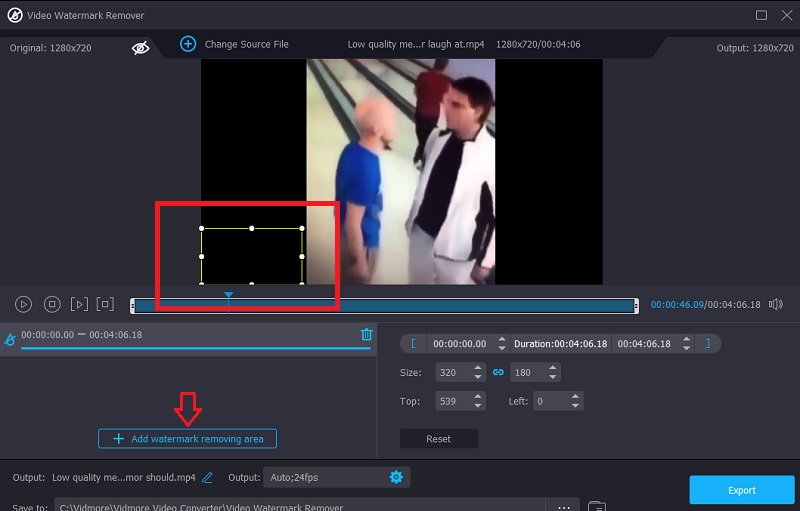
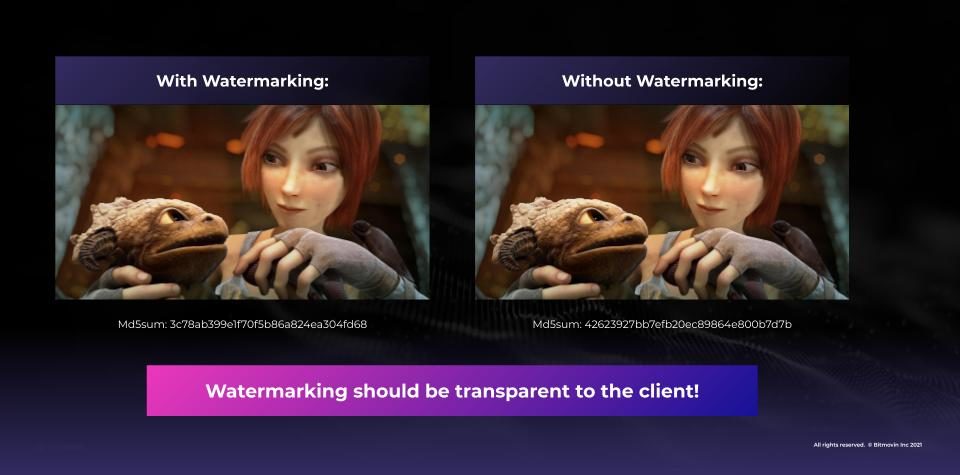
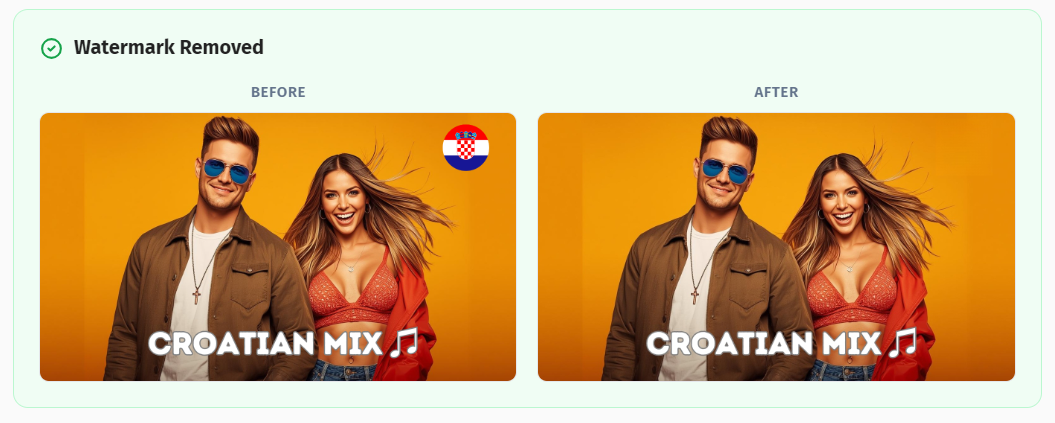
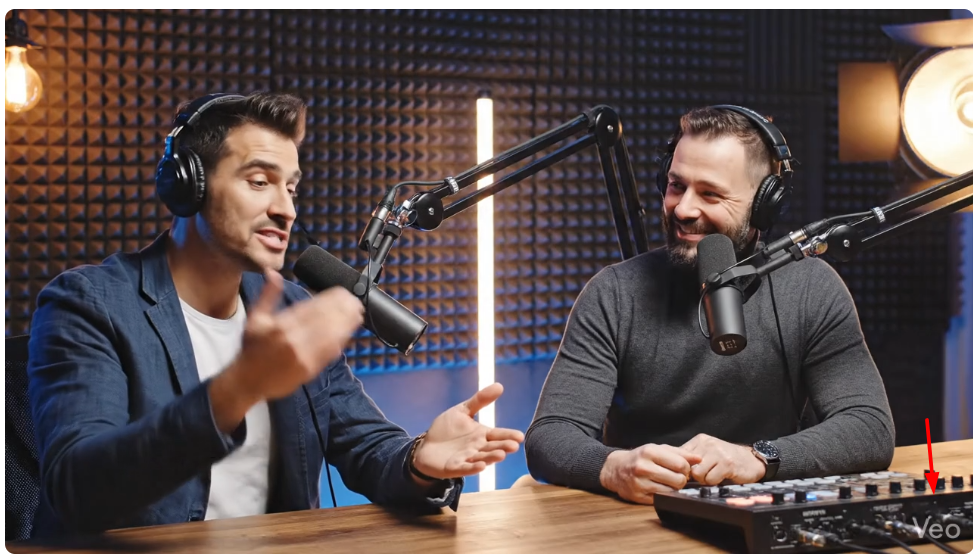
Video watermarking is a different challenge than photos. You're dealing with thousands of frames, moving content, audio tracks, and much larger file sizes. Some tools add watermarks to protect your content. Others remove watermarks - useful when you're cleaning up AI-generated video, stock footage previews, or old recordings with burned-in timestamps.
Here are the best tools for both sides of video watermarking in 2026.
💧Watermark Tool
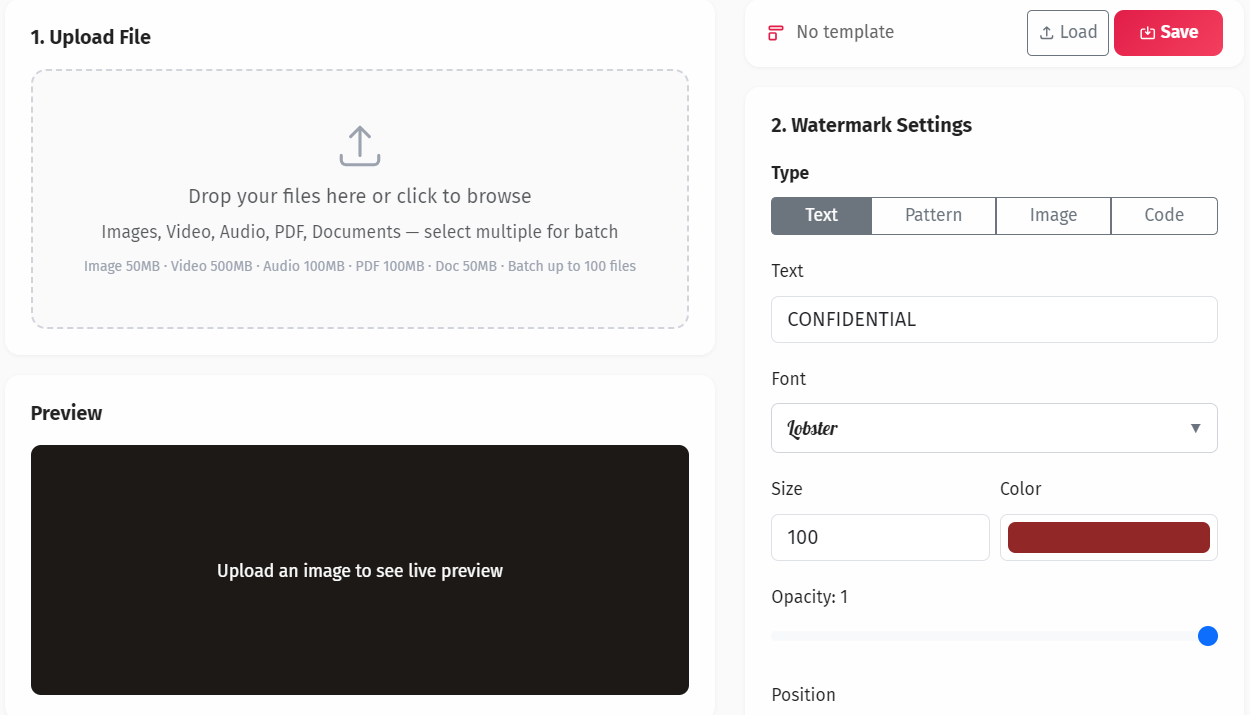
Add or remove watermarks from images, PDFs, videos, audio, and documents. Batch processing, templates, steganography, and AI-powered removal.
✓ Add & Remove✓ All File Types✓ Batch Processing✓ AI Removal
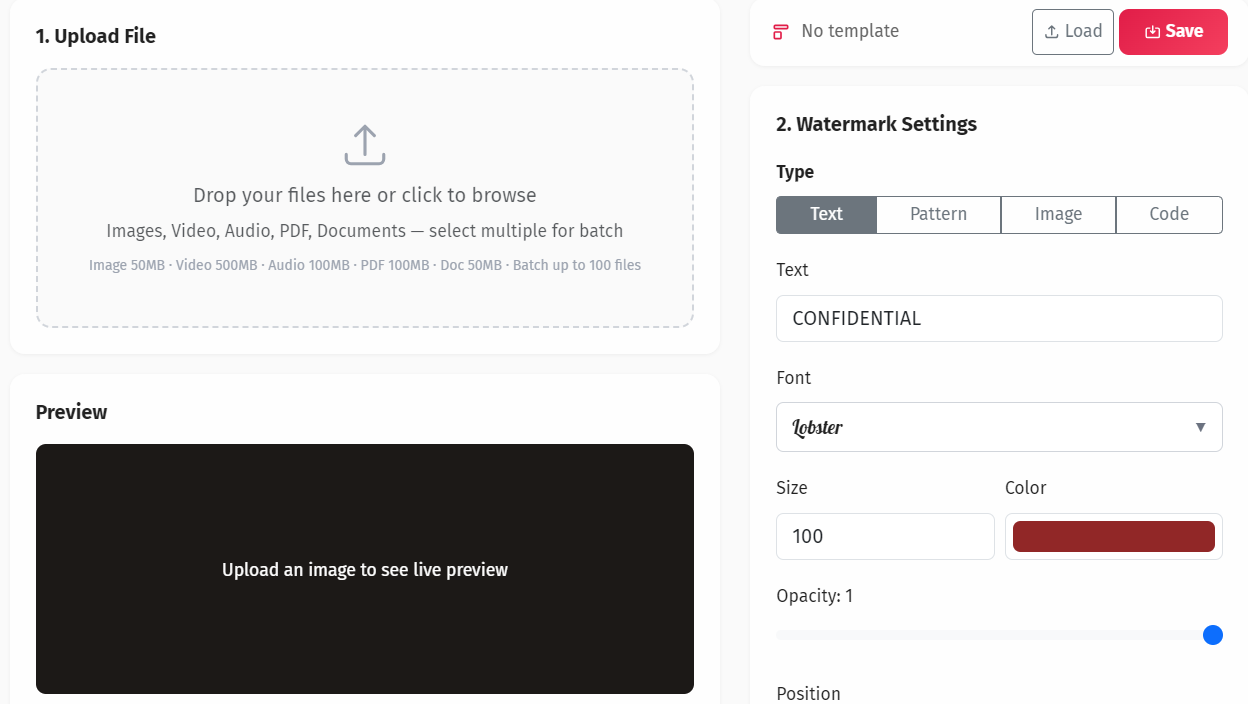
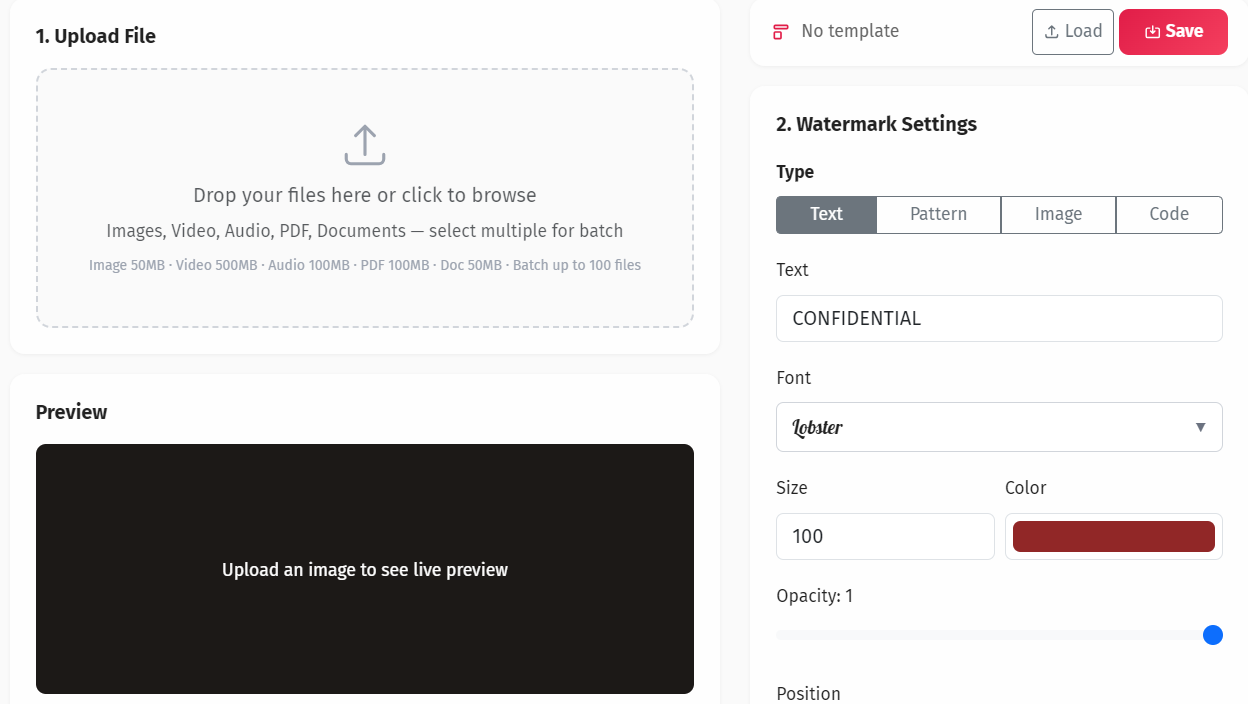
1. YEB Watermark - Best All-in-One Video Watermark Tool
YEB Watermark handles the full spectrum of video watermarking - adding, removing, and invisible tracking. It supports MP4, MOV, WebM, AVI, and MKV up to 500MB, and includes a unique invisible audio watermark at 19kHz (above human hearing range) for forensic tracking.
Key features:
Text, logo, pattern, and QR code watermarks for video
Invisible 19kHz audio watermark for forensic tracking
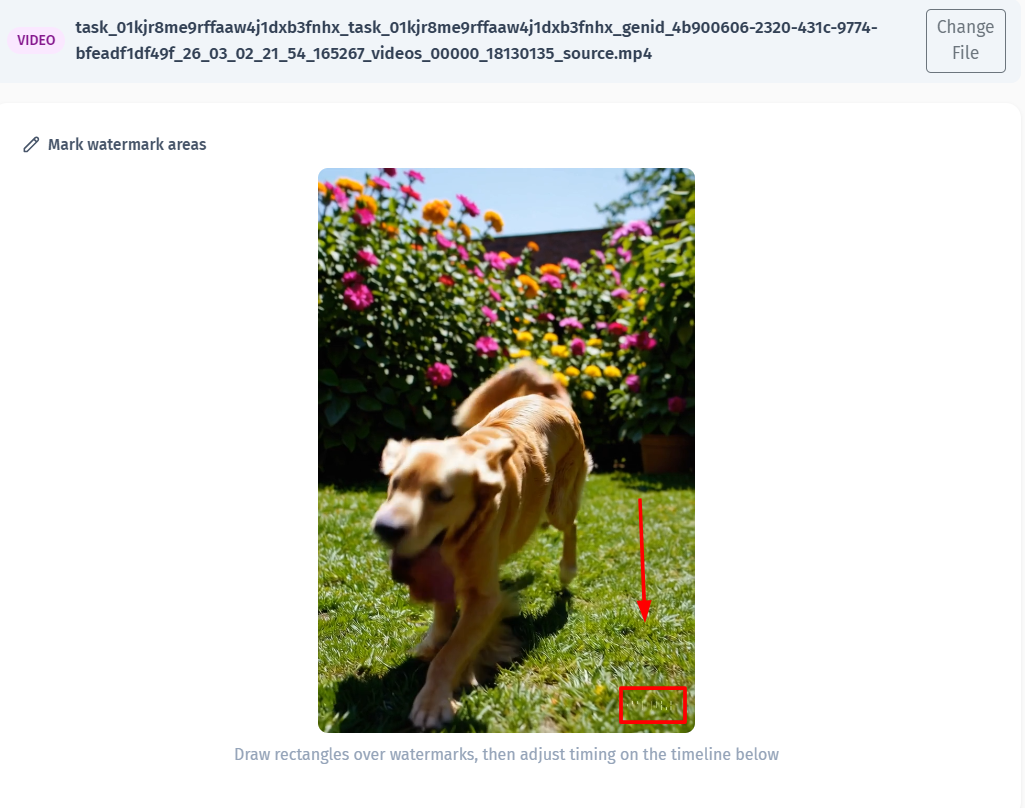
AI-powered removal with frame-by-frame tracking (handles moving watermarks)
Three removal methods: AI Inpainting, Frequency Filtering, Content-Aware Fill
Batch processing up to 100 videos
Supports MP4, MOV, WebM, AVI, MKV
Pricing: Free with limits
Best for: Anyone who needs adding, removing, and invisible watermarking for video in one place
2. Visual Watermark - Best Desktop Batch Video Watermarking
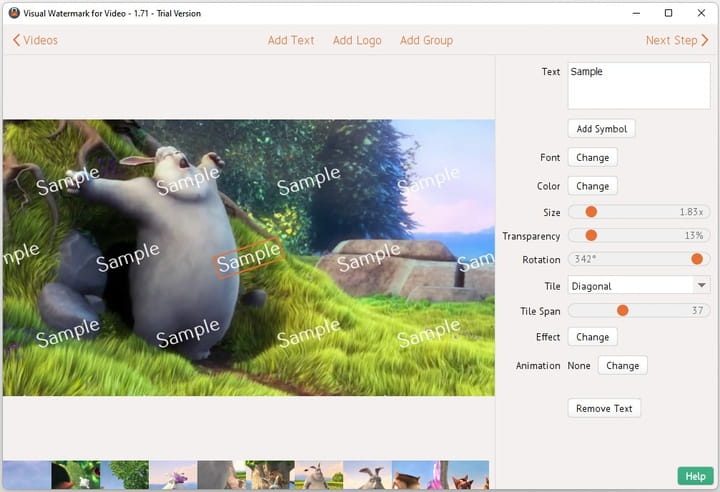
Visual Watermark is fast at batch processing videos. Their benchmark claims 20 one-minute 1080p videos in about 3 minutes on a desktop. The interface is straightforward - text or logo, position it, apply to all. One-time purchase, no subscription.
Key features:
Fast batch video watermarking
Text and logo overlays
Watermark templates and presets
Desktop app works offline
One-time purchase model
Pricing: $19.99-$44.99 one-time
Best for: Batch watermarking videos offline without a subscription
Limitations: Adding only, no removal, no invisible watermarks, desktop only
3. Kapwing - Best Online Collaborative Video Editor
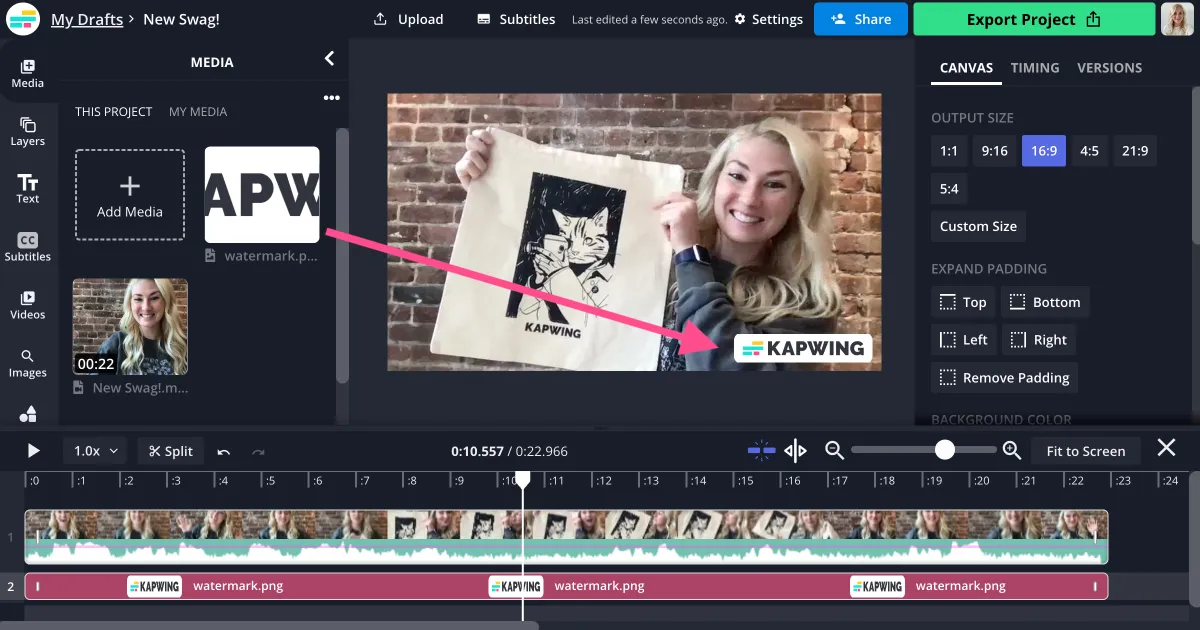
Kapwing is a browser-based video editor that includes watermark tools. Its real strength is team collaboration - multiple people can work on the same project. Adding a watermark is done through the editor's overlay system. The free tier adds a Kapwing watermark to exports, which is the catch.
Key features:
Drag-and-drop text and image overlays
Real-time team collaboration
Cloud-based, no installation
Full video editing suite
Multiple export formats
Pricing: Free (adds Kapwing watermark), subscription plans for clean exports
Best for: Teams collaborating on video projects that need watermark overlays
Limitations: Free version adds their watermark, no removal, more of an editor than a dedicated watermark tool
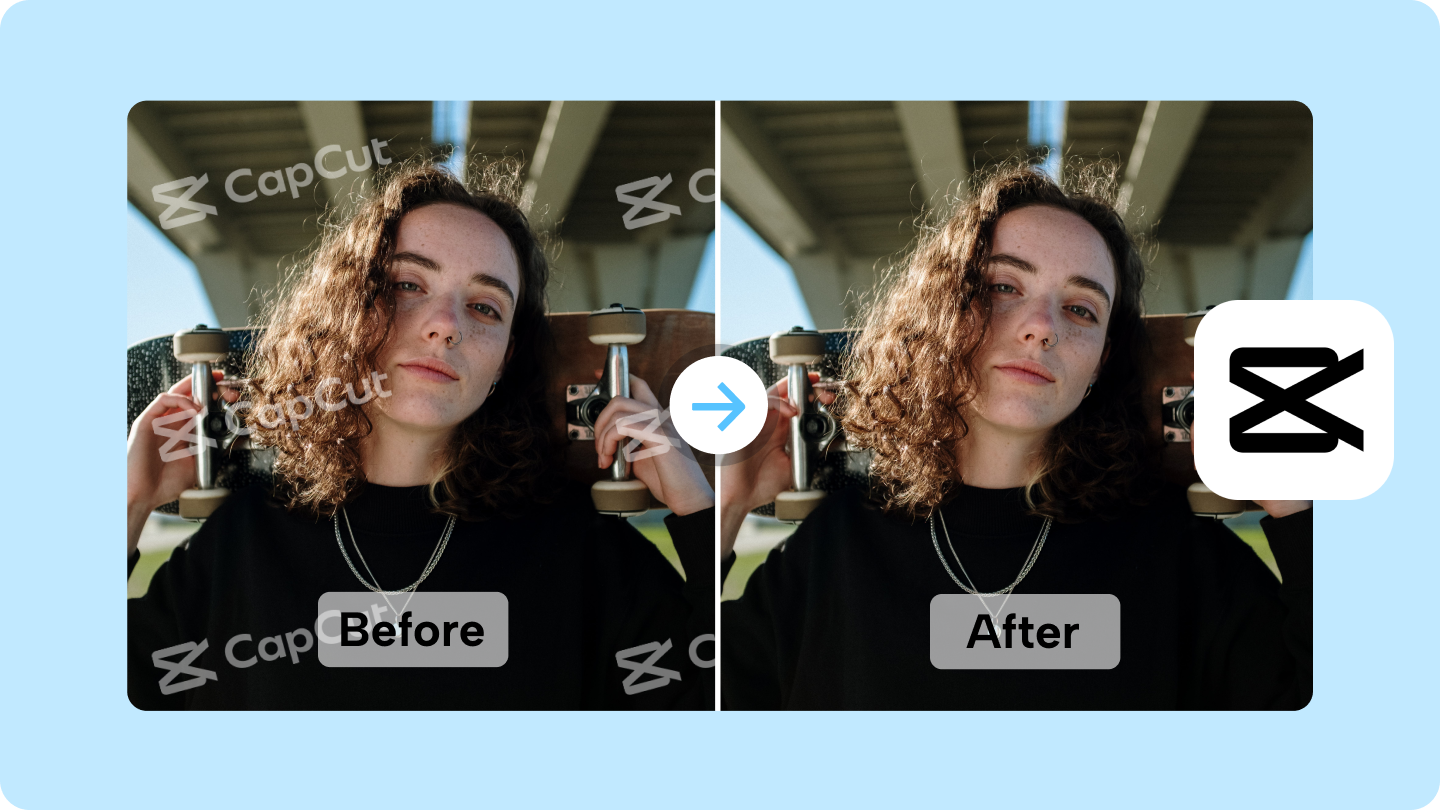
4. CapCut - Best Free Video Editor with Watermark Tools
CapCut (by ByteDance/TikTok) is a genuinely free video editor that doesn't watermark your exports on the free tier. That alone puts it ahead of many competitors. Adding your own watermark is done through text and image overlay layers.
Key features:
No watermark on free exports (1080p)
Text and image overlay layers for custom watermarks
AI tools: background removal, motion tracking, auto-captions
Desktop and mobile (Windows, macOS, iOS, Android)
4K export on Pro plan
Pricing: Free (1080p), Pro $7.99-$19.99/month (4K)
Best for: Social media creators who want free video editing with watermark capability
Limitations: Not a dedicated watermark tool, no removal, no batch watermarking, no invisible watermarks
5. DaVinci Resolve - Best Professional Free Editor
DaVinci Resolve is a professional video editor used in Hollywood productions, and the free version is surprisingly capable. Its Data Burn-In tool lets you add text watermarks, timecodes, and metadata overlays. The learning curve is steep, but the power is unmatched in the free tier.
Key features:
Data Burn-In tool for text overlays and watermarks
Professional color grading and effects
4K and 8K support
No watermark on free version exports
Full editing, color, audio, and VFX workspaces
Pricing: Free (full version), Studio $295 one-time (extra features)
Best for: Professionals who need full editing capabilities with watermarking built in
Limitations: Steep learning curve, overkill for just watermarking, desktop only, no removal tools
6. Filmora - Best Beginner-Friendly Desktop Editor
Wondershare Filmora sits between CapCut and DaVinci Resolve in terms of complexity. It's a desktop video editor with 800+ effects and a watermark overlay system. Good for hobbyists who want more control than online tools but don't need professional-grade software.
Key features:
Watermark overlay through text/image layers
800+ effects and transitions
AI motion tracking for attached watermarks
Multi-layer timeline editing
One-time purchase option available
Pricing: $9.99/month, $49.99/year, or $79.99 one-time
Best for: Hobbyist video creators who want a mid-range editor with watermark capability
Limitations: Free trial watermarks exports, not a dedicated watermark tool, no removal, desktop only
7. HitPaw Watermark Remover - Best Desktop Video Removal
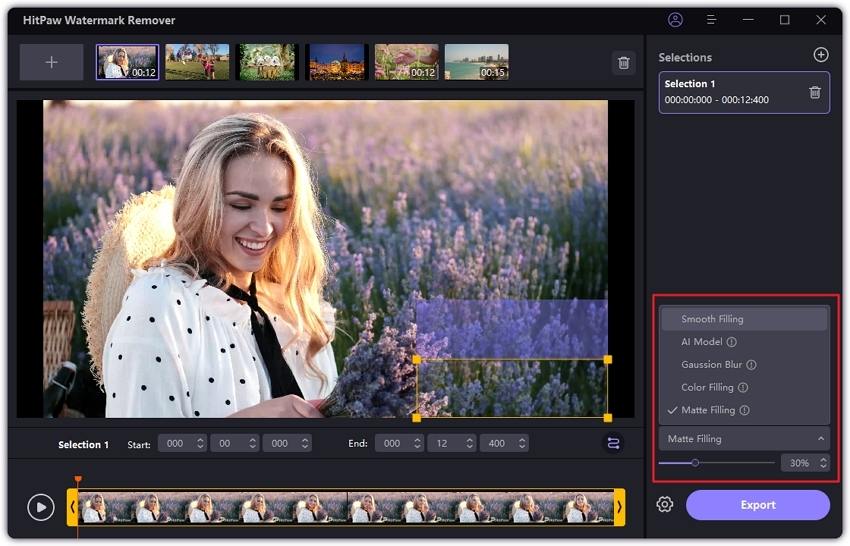
HitPaw does video watermark removal with 5 different AI modes. It can track moving watermarks frame by frame, handle static overlays, and remove logos, text, and date stamps. Desktop only, but the results are consistent.
Key features:
5 AI removal modes for different watermark types
Frame-by-frame tracking for moving watermarks
Removes logos, text, dates, stickers
Preview before export
Both image and video support
Pricing: $29.99 one-time or $19.99/month
Best for: Desktop users who need dedicated video watermark removal
Limitations: Removal only, no adding, trial watermarks output, Windows/Mac only
8. Canva - Best for Quick Branded Video Watermarks
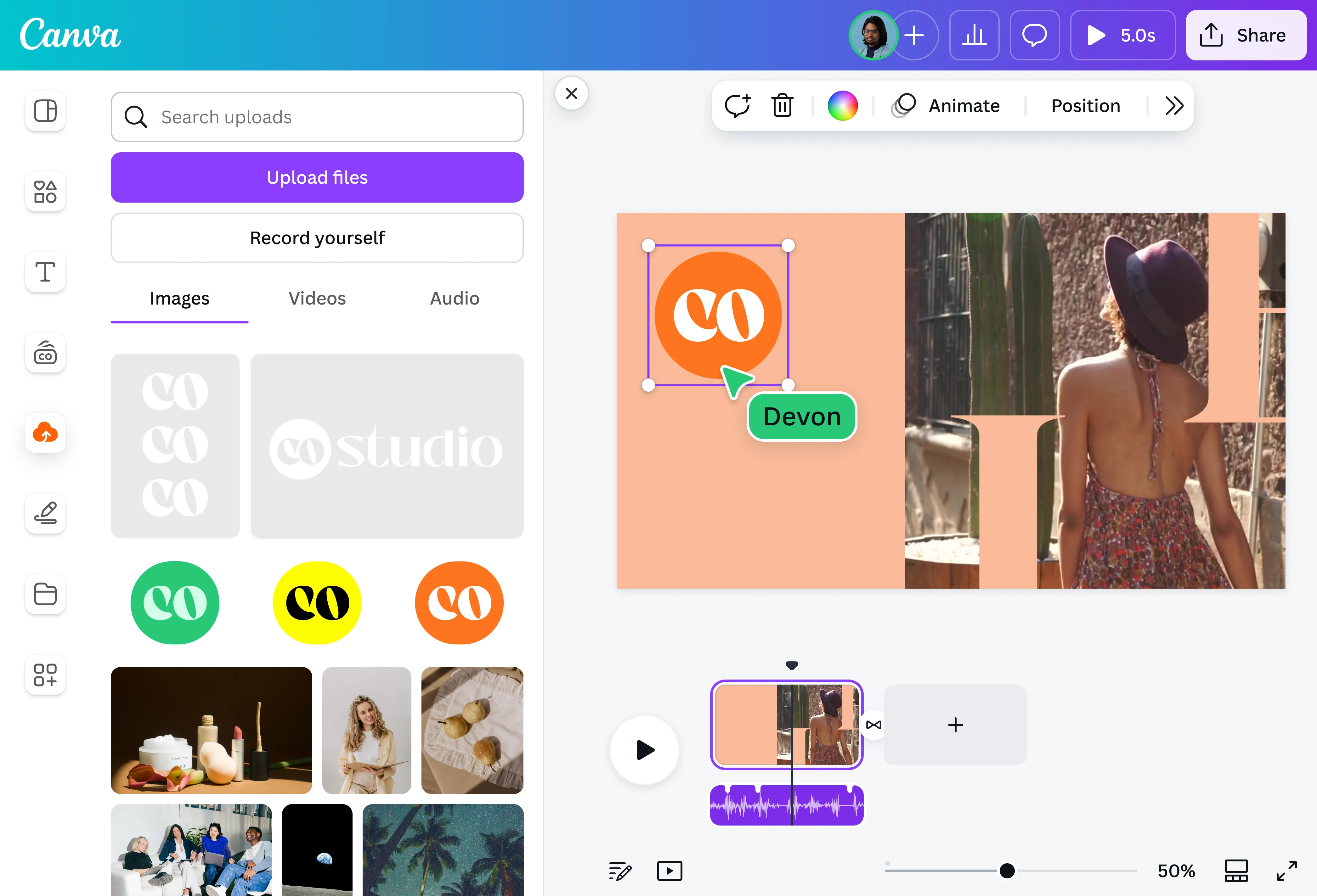
Canva added video editing to its design platform, and you can use it to overlay text or logos on video. If your team already uses Canva's brand kit, applying consistent watermarks to videos is simple. But it's definitely not purpose-built for watermarking.
Key features:
Text and logo overlay on video
Brand kit for consistent styling (Pro)
Cloud-based, no installation
Template library
Team collaboration
Pricing: Free (limited), Pro $12.99/month
Best for: Quick branded watermarks on video for teams already using Canva
Limitations: Not a dedicated watermark tool, no batch, no removal, no invisible watermarks, limited video editing
9. Media.io - Best Online Social Media Watermark Remover
Media.io specializes in removing watermarks from social media videos - TikTok logos, YouTube watermarks, and similar overlays. It's web-based, no login required for basic use, and works on PC, iPhone, and Android.
Key features:
AI removal targeted at social media watermarks
No login required for basic use
Works on PC, iPhone, Android (browser-based)
Preserves video quality during removal
Handles all standard video formats
Pricing: Free (limited), subscription for full features
Best for: Removing TikTok, YouTube, or other social media watermarks from saved videos
Limitations: Removal only, no adding, free version has limits, may struggle with complex watermarks
10. InVideo - Best AI-Assisted Video Editor with Watermarks
InVideo is an AI-powered online video editor that includes watermark overlay tools. It generates videos from text prompts and lets you add branding elements including watermarks. More of a creation tool than a pure watermark solution.
Key features:
AI video generation from text prompts
Text and image watermark overlays
Web-based editor with templates
Stock footage library
Multiple export options
Pricing: Free (limited), ~$9/month for full features
Best for: AI-assisted video creation with built-in watermark tools
Limitations: More of a video creator than watermark tool, no removal, no batch watermarking
Which Video Watermark Tool Should You Pick?
Here's the quick guide:
All-in-one (add + remove + invisible):YEB Watermark - covers everything for video
Free video editing + watermarks: CapCut (no watermark on exports) or DaVinci Resolve (professional grade)
Batch adding offline: Visual Watermark
Team collaboration: Kapwing or Canva
Removing video watermarks: HitPaw (desktop) or Media.io (online)
Removing AI watermarks (Veo, Sora): YEB Watermark - frame-by-frame tracking for moving overlays
If you only need to add a simple text overlay to a video, CapCut or DaVinci Resolve do that for free. But if you need removal, invisible tracking, batch processing, or support for watermarks beyond just video - images, PDFs, audio - then a dedicated watermark platform like YEB covers all of it without switching between tools.